Shopify
Follow the documentation below to integrate the Roof-Calc calculator into your Shopify website, allowing users to generate "Bill of Material" quotes for their roofs through the calculator interface, and have the required products added directly to their basket on a per-project basis.
Requirements
To use the Shopify Roof-Calc integration, you MUST have the following:
- A Shopify website running a plugin capable of handling decimal product quantities required for quoting and selling membrane products. We strongly recommend using Measura, but any equivalent setup allowing your membranes to be added to basket using decimal quantities should work fine.
- A fully configured merchant account with:
- All of the required products and pricing configured to match your Shopify website.
- Calculator correctly configured to show both pricing details and add to basket functionality.
If you are having trouble meeting these requirements, please contact us by emailing [email protected].
Setup
To get the Roof-Calc calculator added to your Shopify website on a dedicated calculator page as recommended, follow these steps with reference to the sections below:
- Add the Roof-Calc custom liquid block to whichever theme you are using (see more).
- Create a new template page within your theme for the Roof-Calc layout and add the Roof-Calc liquid block added in the previous step to it (see more).
Please note that, depending on your specific Shopify theme and plugins, some directions MAY need to be slightly modified. This documentation has been written using Shopify's default Horizon theme, with the Measura plugin for managing decimal product quantities, and should be a good general guide for using Roof-Calc on your Shopify website.
If you are having trouble setting up Roof-Calc on your Shopify website, please contact us by emailing [email protected].
Roof-Calc Liquid Block
Add a custom liquid block with the filename roof-calc.liquid to your Shopify theme with the contents set directly from the code block below. Please use the copy functionality on the code block and ensure that you replace ALL of any default liquid block file contents with the liquid template below.
Detailing how to add a custom liquid block to your Shopify theme is beyond the scope of this documentation. Please consult the Shopify documentation on theme blocks (see here) or any other relevant 3rd party guides and tutorials for adding custom liquid blocks to your theme.
Once you have added the custom liquid block for the Roof-Calc calculator to your theme, you may skip the other steps listed above and add and configure the Roof-Calc liquid block anywhere you want in throughout your website.
{% comment %}
    Block content, primarily wrapper for Roof-Calc iframe.
{% endcomment %}
{% if block.settings.show_seo_content -%}
    <div id="roof-calc-details">{{ block.settings.seo_content }}</div>
    <br>
{%- endif %}
<div
    id="roof-calc"
    data-merchant-ids={{ block.settings.merchant_id  | replace: " ", ""  }}
    data-scroll-on-load={{ block.settings.scroll_on_load }}
    data-redirect-url={{ block.settings.redirect_url }}
></div>

{% comment %}
    Block styles accounting for Roof-Calc wrapper sizing. Containing section is
    responsible for correct sizing on interface within the page.
{% endcomment %}
{% stylesheet %}
    div#roof-calc-details p {
        max-width: 80ch;
    }

    div#roof-calc {
        height: 100dvh;
    }

    div#roof-calc iframe {
        border: none;
    }
{% endstylesheet %}

{% comment %}
    Roof-Calc settings exposed in editor.
{% endcomment %}
{% schema %}
    {
        "name": "Roof-Calc",
        "class": "roof-calc",
        "settings": [
            {
                "type": "richtext",
                "id": "seo_content",
                "default": "<h1>EPDM Roofing Calculator</h1><p>Enter your roof dimensions, select your edge types, choose your roof deck material and we'll do the rest! Your quote will list all of the materials required to complete your roof including membranes, trims and adhesives.</p>",
                "label": "SEO Content",
                "info": "SEO/informational content to display to the user above the calculator."
            },
            {
                "type": "checkbox",
                "id": "show_seo_content",
                "label": "Show SEO content",
                "default": true,
                "info": "Disable SEO/informational content if managing elsewhere on the page."
            },
            {
                "type": "text",
                "id": "merchant_id",
                "label": "Merchant ID(s)",
                "info": "ID of your account (found in 'Merchant Details' dashboard tab in format 'AAAA-AAAA'). Use comma separated values to specify multiple IDs."
            },
            {
                "type": "url",
                "id": "redirect_url",
                "label": "Redirect URL",
                "info": "URL to which user should be redirected after adding a quote to their basket. If unset, current page will be reloaded."
            },
            {
                "type": "checkbox",
                "id": "scroll_on_load",
                "default": true,
                "label": "Automatically scroll to calculator",
                "info": "Scroll page to fill viewport with calculator. Enabling may impact this page's web vitals CLS score, but makes a more convenient user experience."
            }
        ],
        "presets": [
            { "name": "Roof-Calc" }
        ]
    }
{% endschema %}

{% comment %}
    JS responsible for mounting Roof-Calc iframe and registering listeners for
    add to basket etc. messages dispatched from iframe.
{% endcomment %}
{% javascript %}
    // Declare global variables.
    const PUBLIC_ID_LIST_REGEX = /^(([A-Za-z]{4}(-|,|$)){2}){1,}(?<!,)$/
    const ROOF_CALC_URL_REGEX = /^https:\/\/.*app\.roof-calc\.co\.uk$/
    const ROOF_CALC_URL = "https://app.roof-calc.co.uk"
    const SHOPIFY_ROOT = window.Shopify.routes.root

    /**
     * Listener for messages posted from iframe to parent window, resolving
     * based on message action. This listener is primarily responsible for
     * adding to basket at the end of the calculator.
     * @param {any} event Message event posted from Roof-Calc iframe.
     */
    const iframeMessageListener = async (/** @type {any} */ event) => {
        const action = event.data.action
        if (action === "MOBILE_MEASUREMENT_INPUT_CLOSED") {
            const iframeContainer = document.getElementById("roof-calc")
            iframeContainer?.scrollIntoView({
                behavior: "smooth",
                block: "start",
                inline: "nearest"
            })
        }
        else if (action === "MOBILE_EMULATE_SCROLL") {
            const top = event.data.top
            window.parent.scrollBy({ top })
        }
        else if (action === "ADD_TO_BASKET") {
            const { quoteId, lineItems } = event.data

            // Add all line items to user's basket tagged with Roof-Calc ID.
            const productsIds = /** @type {Map.<string, number>} */ (new Map())
            let [page, data] = /** @type {[number, any[]]} */ ([1, []])
            try {
                // Build map of shopify product IDs referenced by merchant
                // product SKUs.
                do {
                    // Fetch next page of products (starting at first page).
                    const path = `products.json?limit=250&page=${page++}`
                    data = (await fetch(SHOPIFY_ROOT + path)
                        .then(response => response.json())
                        .catch(() => {
                            throw new Error("Error fetching shopify products")
                        }))
                        .products

                    // Parse shopify product data adding product ID mapping
                    // between all variant SKUs and their shopify IDs.
                    for (const { variants } of data) {
                        for (const { id, sku, available } of variants) {
                            if (productsIds.has(sku)) { continue }
                            if (available) { productsIds.set(sku, id) }
                        }
                    }
                } while (data?.length)

                // Purge *all* existing line items from user's basket with a
                // matching quote ID to protect against line item modification
                // and duplicate adding to basket from quote PDF.
                const updates = {}
                const basket = (await fetch(SHOPIFY_ROOT + "cart.js")
                    .then(response => response.json())
                    .catch(() => {
                        throw new Error("Error fetching shopify basket")
                    }))
                    .items
                for (const { key, properties } of basket) {
                    if (properties["Roof-Calc ID"] === quoteId) {
                        updates[key] = 0
                    }
                }
                await fetch(SHOPIFY_ROOT + "cart/update.js", {
                    method: "POST",
                    headers: { "Content-Type": "application/json" },
                    body: JSON.stringify({ updates })
                })
                    .catch(() => {
                        throw new Error("Error removing items from basket")
                    })

                // Build and add all line items tagged with quote ID to the
                // user's basket.
                const items = []
                for (const { sku, quantity } of lineItems) {
                    const id = productsIds.get(sku)
                    if (!id) { throw new Error("Product not found") }
                    items.push({
                        id,
                        quantity,
                        properties: { "Roof-Calc ID": quoteId }
                    })
                }
                await fetch(SHOPIFY_ROOT + "cart/add.js", {
                    method: "POST",
                    headers: { "Content-Type": "application/json" },
                    body: JSON.stringify({ items })
                })
                    .catch(() => {
                        throw new Error("Error adding items to basket")
                    })
            }
            catch (/** @type {any} */ error) {
                error.name = "Roof-Calc Error"
                console.error(error)
            }

            // Redirect or reload window based on value set in dataset. Note
            // that in the case of reload, page is redirected with *all* query
            // params removed to prevent repeated actions triggered by query.
            const iframeContainer = document.getElementById("roof-calc")
            const { redirectUrl } = iframeContainer.dataset
            const { origin, pathname } = window.location
            redirectUrl
                ? window.location.replace(redirectUrl)
                : window.location.replace(origin + pathname)
        }
    }

    /**
    * Start Roof-Calc flat roofing calculator application interface with config
    * details corresponding to this website's merchant account:
    * - Merchant ID(s) inferred from dataset values set by plugin from optional
    * variable passed to plugin shortcode.
    * - Relevant query parameters from parent window passed to iframe.
    */
    const startRoofCalc = () => {
        // Fetch target iframe container and parse dataset values set by liquid
        // block. End execution if iframe container not found.
        const iframeContainer = document.getElementById("roof-calc")
        if (!iframeContainer) { return }
        let { merchantIds, scrollOnLoad } = iframeContainer.dataset

        // Sanitize values fetched from container dataset.
        if (!merchantIds?.match(PUBLIC_ID_LIST_REGEX)) { merchantIds = "" }

        // Create iframe element pointing to Roof-Calc app base url, passing
        // through any search parameters found in parent window location, and
        // adding query parameters inferred from iframe container dataset.
        const searchParams = new URLSearchParams(window.location.search)
        if (merchantIds) {
            searchParams.set(
                merchantIds.match(/,/) ? "merchantIds" : "merchantId",
                merchantIds
            )
        }
        const iframe = document.createElement("iframe")
        iframe.src = `${ROOF_CALC_URL}/?${searchParams.toString()}`

        // Set iframe to expand to fill available space in parent container.
        // Parent container will be served by plugin as a div with id
        // "roof-calc", and should be styled as required to fill the desired
        // part of the page where the calculator should be.
        iframe.style.width = "100%"
        iframe.style.height = "100%"

        // Add iframe message event listener and mount iframe to document in
        // target container.
        window.addEventListener("message", iframeMessageListener, true)
        iframeContainer.append(iframe)

        // Automatically scroll calculator interface into view if enabled by
        // flag in dataset.
        if (scrollOnLoad === "true") {
            const iframeContainer = document.getElementById("roof-calc")
            setTimeout(() => {
                iframeContainer?.scrollIntoView({
                    behavior: "smooth",
                    block: "start",
                    inline: "nearest"
                })
            }, 600)
        }
    }

    startRoofCalc()
{% endjavascript %}
Roof-Calc Template Page
Build your Roof-Calc template page:
- Remove all page content and hide the default page section (see more).
- Add a custom section for the Roof-Calc liquid block to occupy (see more).
- Add a Roof-Calc liquid block to the custom section added in the previous step (see more).
- Configure the Roof-Calc block in the right sidebar ensuring that your Merchant ID is correctly set (see more).
- Modify custom CSS and any other elements within the custom section as required to get the page looking how you want it to (see more).
- Add a Roof-Calc page to your website using this template.
- Add any appropriate links in the main navigation and related product pages etc. to the new calculator page.
Detailing how to add pages and links to your Shopify website is beyond the scope of this documentation. Please consult the Shopify documentation on adding pages (see here) and adding links to your main navigation (see here) or any other relevant 3rd party guides and tutorials for these steps.
New Template Page
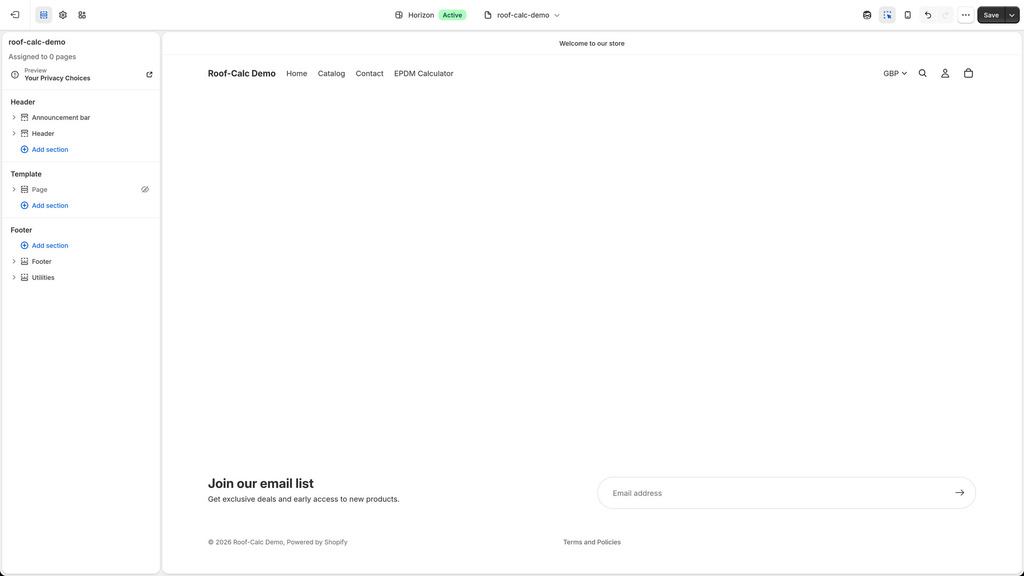
We recommend that the Roof-Calc liquid block is added to a blank template page with all default content removed except for site-wide elements such as the main navbar and footer. We also recommend that you hide any mandatory page sections which cannot be removed, and instead add the Roof-Calc block to a custom section. This tends to be the easiest way to correctly display the Roof-Calc block on the page. Please see the image below for a guide on how your template page should look at this stage.
If you are using a sticky main navigation, we recommend that you disable this on this page to maximise the vertical screen real estate available to the Roof-Calc block. This is particularly important for user on mobile devices, where the Roof-Calc block should fill the viewport.
All details of how to create and edit template pages in your Shopify website are beyond the scope of this documentation. Please consult the Shopify documentation on templates (see here) or any other relevant 3rd party guides and tutorials for template pages.
Add Custom Section
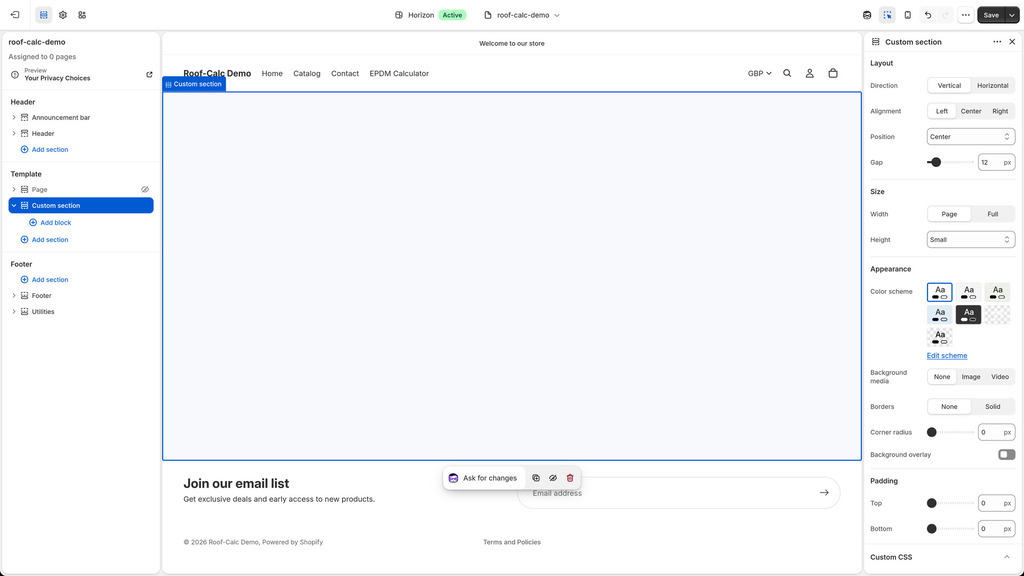
We recommend that this Roof-Calc liquid block is added to a custom section within your template page. To add a custom section to your template page, click the "Add Section" under your template page in the left sidebar and search for/select "Custom section". Please see the image below for a guide on how your template page should look at this stage.
Add Roof-Calc Block
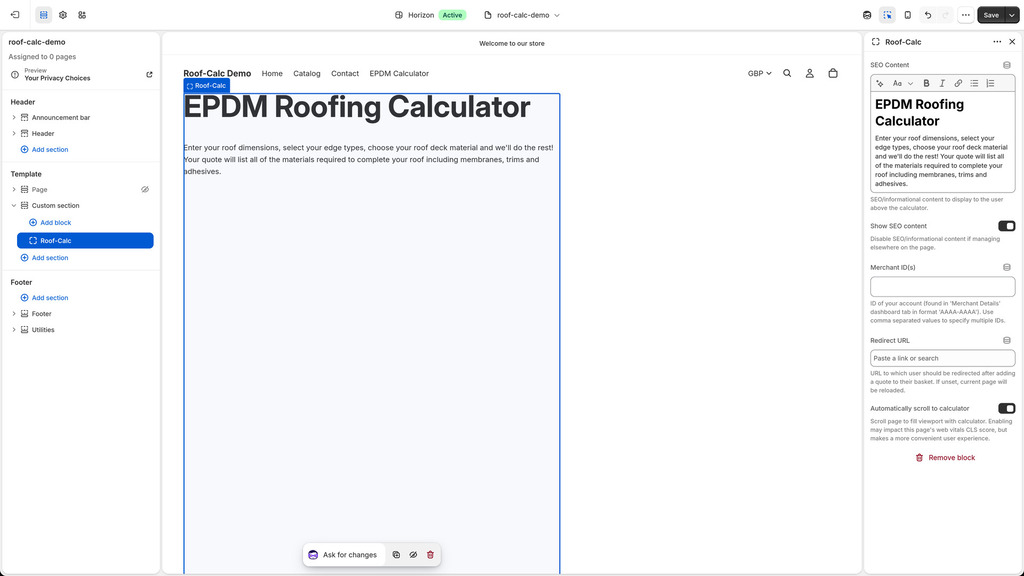
Click the "Add Block" button under your new custom section in the left sidebar and search for/select "Roof-Calc" to add the Roof-Calc custom liquid block to the new section. Please see the image below for a guide on how your template page should look at this stage.
Please note that although we recommend a specific way of adding the Roof-Calc block to your Shopify website, this liquid block can be used anywhere you want within your Shopify website, and may be found by searching for "Roof-Calc" when adding a block to most sections.
Configure Roof-Calc Block
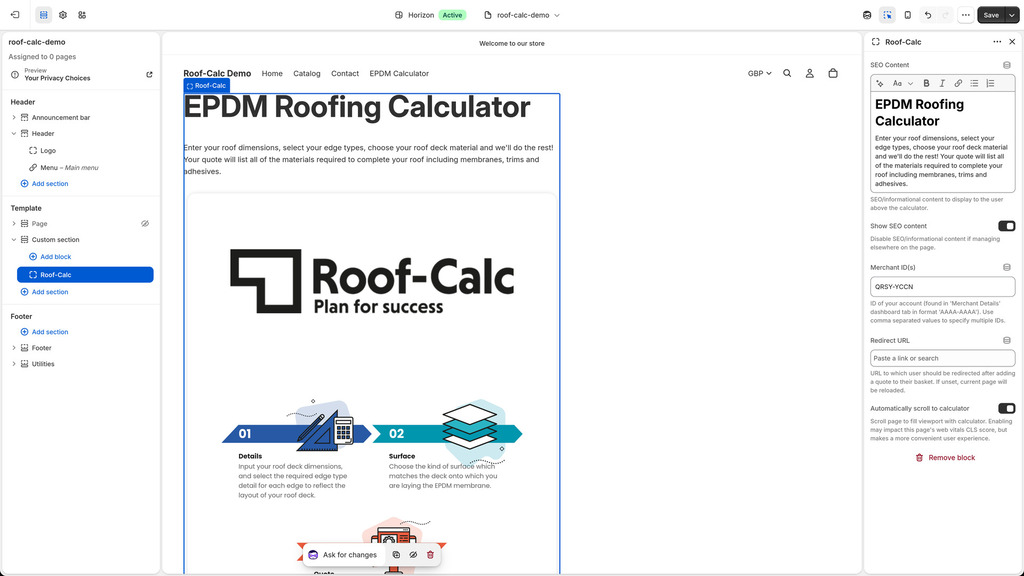
The behaviour and appearance of the Roof-Calc block can be configured by selecting the Roof-Calc block in the left sidebar and editing the block's settings in the right sidebar. All options are detailed below and described alongside the inputs in the Shopify editor:
- SEO Content: Richtext input for SEO/informational content to display to the user above the calculator.
- Show SEO Content: Toggle for displaying the SEO/informational content defined in the previous field.
- Merchant ID(s): Text input for ID of your account (found in 'Merchant Details' dashboard tab in format 'AAAA-AAAA'). Use comma separated values to specify multiple IDs.
- Redirect URL: Text input for URL to which user should be redirected after adding a quote to their basket. If unset, current page will be reloaded.
- Automatically scroll to calculator: Toggle for enabling automatic page scroll on load which will scroll the page to fill viewport with calculator. Enabling may impact this page's web vitals CLS score, but makes a more convenient user experience.
The Merchant ID setting MUST be set to the correct value corresponding to you account(s). Please see the image below for a guide on how your template page should look at this stage.
Configure Custom Section
Add any content and CSS to your custom section as required to get the template page and Roof-Calc block displaying as desired, particularly on smaller screen sizes and mobile devices. Please see the image below for a guide on how your template page should look at this stage.
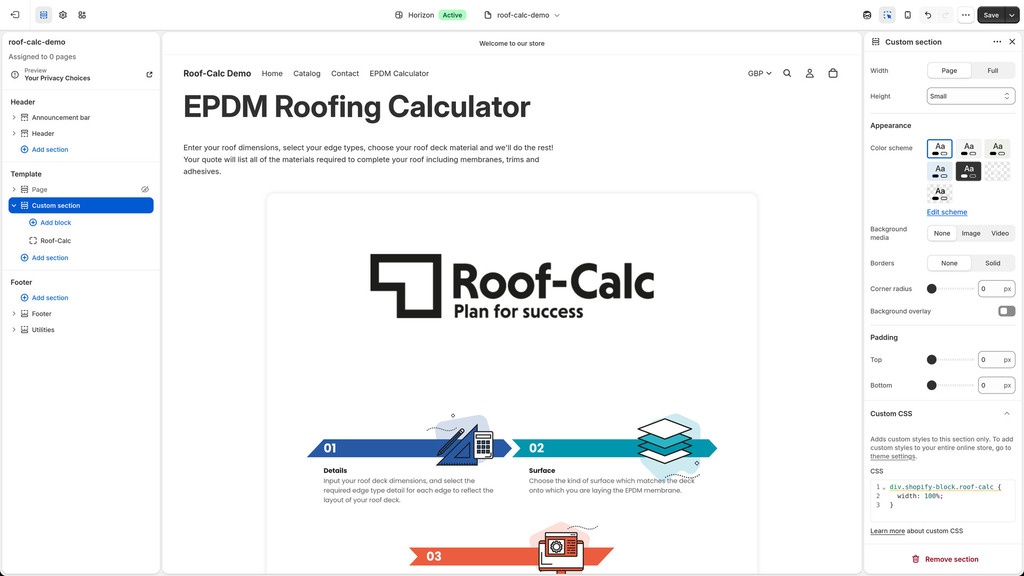
We recommend that the containing element of the Roof-Calc iframe (query selector div.shopify-block.roof-calc) is forced to the full width of the page. In this condition, the Roof-Calc interface will appear centered on the page, expanding to a sensible maximum width and filling all available horizontal space on smaller screens. In all cases, the container will automatically size itself to 100% of the dynamic viewport height to fill all of the available vertical space.
At this stage you can preview your Roof-Calc template page. Before going live, please ensure that you are satisfied with how the Roof-Calc block is displaying, particularly on smaller screen sizes and mobile devices.